NewsNinja 3 · Guide 6
How to Read Gmail in NewsNinja
Connect your Gmail Inbox with a Google app password in a few minutes.
NewsNinja can show your Gmail Inbox next to your feeds, so newsletters and mail sit alongside the articles you follow. Gmail connects over IMAP, the standard mail protocol, using an app password: a separate 16-character password that Google creates just for NewsNinja.
This guide walks you through turning on 2-Step Verification, creating the app password, and adding your account.
Before you start
You need:
- A Gmail or Google account with 2-Step Verification turned on. Google only offers app passwords when it is on.
- A few minutes on a browser where you can sign in to your Google Account.
If you use Gmail through work or school (Google Workspace), your administrator may have turned off app passwords or IMAP access. If the steps below aren’t available to you, ask your administrator.
Step 1: Turn on 2-Step Verification
- Go to myaccount.google.com/signinoptions/two-step-verification and sign in.
- If 2-Step Verification is already on, continue to Step 2.
- Otherwise, follow Google’s prompts to turn it on with your phone number, an authenticator app, or a passkey.
Step 2: Create an app password
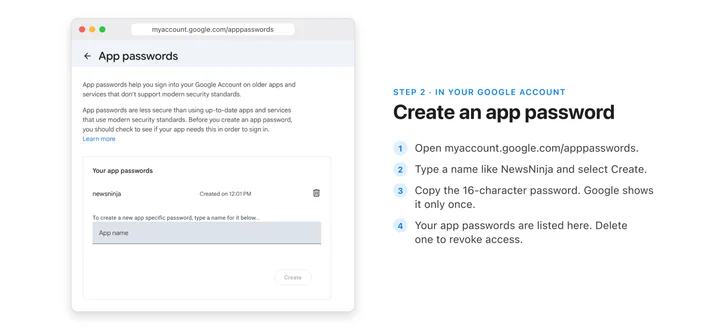
- Go to myaccount.google.com/apppasswords and sign in again if asked.
- Enter a name you will recognize later, such as NewsNinja, and select Create.
- Google shows a 16-character password in four groups of letters. Copy it, or keep the page open while you set up NewsNinja.
Google shows the app password only once. If you lose it, delete it and create a new one. Your regular Google password does not change.
Step 3: Add Gmail in NewsNinja
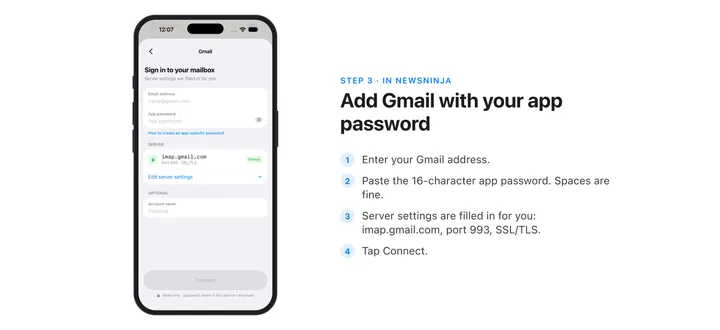
- In Feeds, tap + to open Add Source, then choose Email.
- Choose Gmail.
- Enter your Gmail address.
- Paste the app password into App password. You can include or leave out the spaces between the groups.
- Tap Connect.
NewsNinja fills in Gmail’s server settings for you (imap.gmail.com, port 993, TLS). After it checks that it can read your Inbox, the account is ready, and your mail appears under Email in Feeds.
What NewsNinja can access
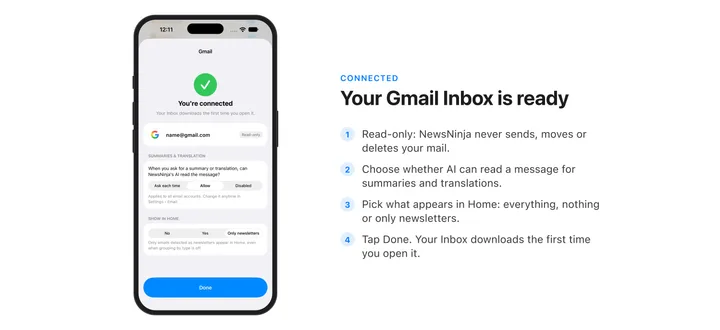
- Read-only, Inbox only. NewsNinja reads your Inbox and never sends, deletes, moves, or labels messages. Marking messages as read in NewsNinja doesn’t change them in Gmail.
- Your app password stays on your device. It is stored in this device’s Keychain and is never synced or sent to NewsNinja’s servers. Downloaded email is stored encrypted on your device.
- Each device signs in separately. Account settings sync through iCloud, but on each new device you need to enter an app password again. You can reuse the same one or create one per device.
- AI is your choice. Summaries and translations of email follow the setting in Settings > Email. By default, NewsNinja asks before processing each message.
Troubleshooting
“App passwords” isn’t available on my account. Make sure 2-Step Verification is on. Google also hides app passwords for accounts using only security keys, accounts in Advanced Protection, and some work or school accounts.
NewsNinja says the password is wrong. Check that you entered your full Gmail address and the app password, not your regular Google password. If it still fails, delete the app password and create a new one.
It stopped working after I changed my Google password. Changing your Google password revokes your app passwords. Create a new one, then open the account in NewsNinja, enter it, and tap Save.
I use Gmail through work or school. Your administrator controls whether IMAP and app passwords are allowed. If they are turned off, NewsNinja can’t connect to that account.
Disconnect Gmail
To remove the account, open Manage Feeds > Email accounts, select the account, and choose Remove account. This deletes the downloaded email and the stored password from your devices. Your Gmail mailbox is unchanged.
To revoke NewsNinja’s access completely, delete the app password at myaccount.google.com/apppasswords.