NewsNinja 3 · Guide 5
How to Catch Up with Stories
See the biggest news from your own feeds as stories covered by several outlets, and learn when to use Stories instead of Home.
Stories turns the feeds you follow into a short list of the news that matters most right now. Instead of scrolling every headline, you see each major event once, with an AI title, a one-line overview, and every source that covered it.
Stories is new in NewsNinja 3.3 and is part of the NewsNinja+ subscription.
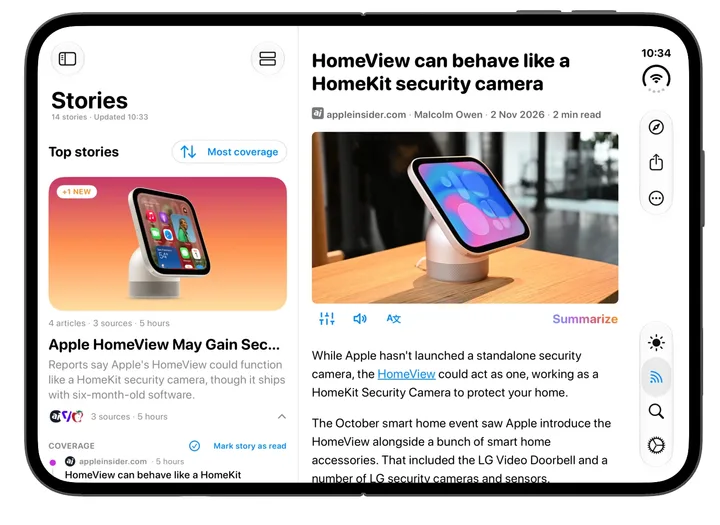
Home or Stories?
Home and Stories read from the same feeds, but they answer different questions.
| Home | Stories | |
|---|---|---|
| What it shows | Everything from your Home feeds | Only news covered by at least two of your sources |
| Best for | Browsing at your own pace, following niche sources | Staying up to date when you only have a few minutes |
| Organization | Your choice of sorting and grouping: Scientifically, Newest first, Oldest first, or By feed | Grouped by AI into stories, ranked by coverage or recency |
| Headlines | The original headline of every item | One AI title and overview per story, with the original headlines inside |
| Time range | All unread items in your feeds | The last 36 hours |
Use Home when you want to see everything: a long read from a small blog, a new video from a channel you love, or a post that only one source published. Home’s Scientific grouping can also collapse similar headlines so the list stays easy to scan.
Use Stories when you are short on time. A single article on its own never becomes a story, so what remains is the news several of your outlets thought was worth covering. Five minutes in Stories is usually enough to know what happened today.
Many people use both: Stories first, to catch up on the big news, then Home for everything else.
Open Stories
Open the Feeds tab. Stories has its own purple tile, right next to Home. Select it to see your stories; the number on the tile shows how many there are.
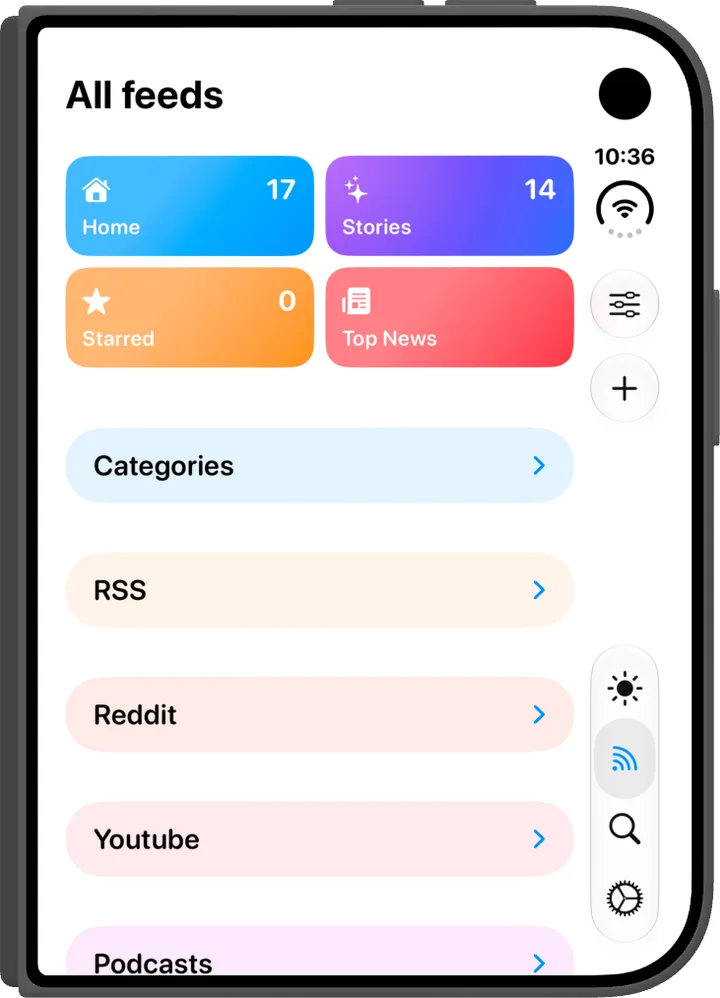
The first load groups your recent articles and writes a title for each story. This takes a few seconds; later visits open instantly. Pull down to refresh at any time.
You can also add a Stories section to Today. It shows the stories from Today’s recent-content window, and its header opens the full Stories screen.
Read a story
Each story shows:
- An AI title and a one-line overview of what happened, written in your summary language.
- How many sources and articles cover it.
- Badges such as New or Developing, and a count of articles added since you last looked.
Select a story to expand it into its coverage: every article on that story, newest first, with its source. Choose Show more to see the rest of a large story, then select a headline to open the article as usual.
When you are done with a story, use Mark story as read to mark all of its articles as read at once. They also appear as read in Home.
Sort your stories
Use Sort stories in the toolbar:
- Most coverage puts the stories covered by the most sources at the top. This is the best way to see the day’s biggest news first.
- Latest puts the most recently updated stories at the top.
Choose a style
The style menu in the toolbar changes how the list looks:
- Showcase: rounded cards with images.
- Briefing: numbered rows with source badges, for fast scanning.
- Magazine: serif type and generous white space.
- Platinum: a retro desktop window.
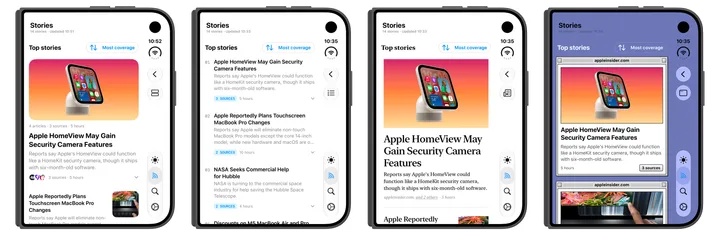
From left: Showcase, Briefing, Magazine, and Platinum. Your choice is shared with Top News, so both screens look the same.
Get more out of Stories
Stories is built from your Home feeds, so it follows the same choices you made there: sources left out of Home, hidden read items, and words in your blocklist are left out of Stories too. Email is never included.
A story needs the same news from at least two different sources in the last 36 hours. For posts from Reddit, X, Mastodon, or Bluesky, two posts are enough, since a subreddit or account counts as one source. If you only see a few stories, follow more outlets that cover the topics you care about. Stories works across languages too, so an Italian and an English outlet covering the same event end up in the same story.
Privacy
To group your articles and write titles, NewsNinja sends only headlines and source names to its server. Article text, links, email, and anything about you are never sent, and no NewsNinja account is required.
Stories or Top News?
Stories is personal: it is built from your own feeds. Top News works the same way, but with sources selected by NewsNinja: around 80 feeds from major international outlets, grouped into stories every 3 hours. Use it to see the biggest news in the world, even if you follow only a few sources.
- Find Top News in the Feeds tab, at the top of Discover, or add it as a section on Today.
- Switch topics with the Category menu: Top, World, Business, Technology, Science & Health, Sports, Entertainment, and Gaming. In languages other than English, Top News is powered by Kagi News and uses its categories.
- Top News is free for everyone, and you can also try it on the web at ainews.ninja/news, with no app or account.