How to Translate Articles and Headlines in NewsNinja
Translate headlines from your feed list and read full articles in your language in NewsNinja, with Inline or Fast translation and an on-device option.


Some of the best coverage of a story comes from outlets that don’t publish in your language: a French newspaper on European politics, a Japanese site on gaming, a German blog on cars. NewsNinja lets you follow those sources next to everything else, translate a headline to decide whether it’s worth opening, and then read the full article in your language without leaving the app.
Choose your language
Translation is off until you pick a target language:
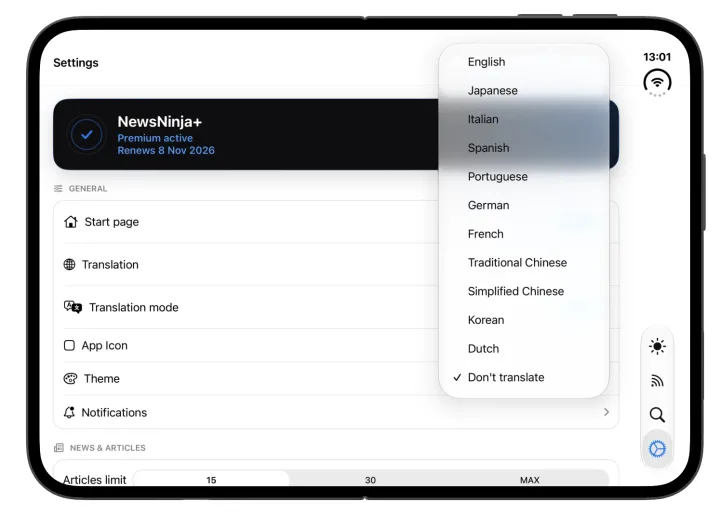
- Open Settings → General.
- Tap Translation and choose the language you want to read in.
You can choose English, Spanish, French, German, Italian, Portuguese, Dutch, Japanese, Korean, Simplified Chinese, or Traditional Chinese. Choose Don’t translate to turn translation off again.
Translate a headline
Headline translation works from your lists, so you can scan a feed in another language before opening anything:
- Swipe left on an item in a feed list.
- Tap Translate.
The translated headline replaces the original in the list. Swipe and tap Translate again to go back to the original headline.
This works for news and RSS articles as well as posts from Reddit, X, Mastodon, Bluesky, and Hacker News. Podcast episodes show download actions instead.
In the video, a headline is translated from English to Japanese in the list, and then the full article is translated inline.
Translate an article
Open the article and tap Translate in the reader controls. NewsNinja uses the language you chose in Settings.
You can pick how the translation appears in Settings → General → Translation mode:
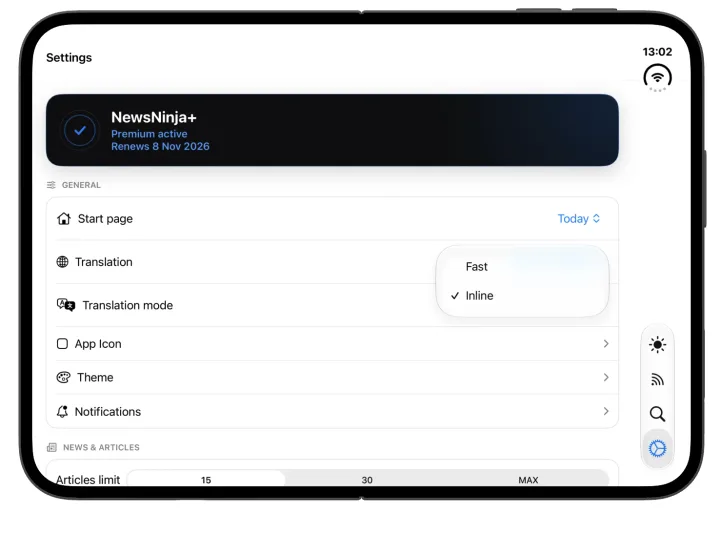
- Inline translates the article inside the reader, so the layout, images, and links stay where they are. Tap Original to switch back to the source text.
- Fast opens the translated text in a separate view, leaving the article underneath unchanged. It’s handy when you only need the gist.
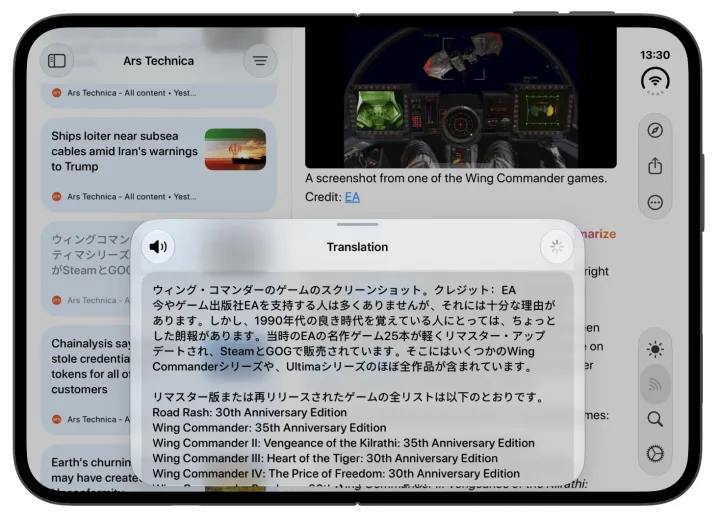
Article translation is a NewsNinja+ feature.
Translate on your device
In Settings → News & Articles → AI type, you can choose where article translations are processed:
- On-device uses Apple’s built-in translation, so the article text isn’t sent to NewsNinja’s server. You don’t need Apple Intelligence for this. iOS may ask you to download a language the first time you use it.
- Server sends the text to NewsNinja’s server for translation.
The same setting controls article summaries. Headlines are always translated by NewsNinja’s server.
Good to know
- The article is already in your language. If the article is already written in the language you chose, NewsNinja tells you instead of translating it.
- Summaries and sharing use the original. Translation changes what you read in the reader. Summarizing or sharing an article still uses its original content and link.
- Emails can be translated too. The same Translate button appears on emails, as introduced in NewsNinja 3.2.
Build a multilingual feed
Translation is most useful when your sources aren’t all in one language. Add a few international outlets alongside your usual ones, follow public accounts on X, Mastodon, and Bluesky from other countries, or follow subreddits in other languages. When an article is long, summarize it to get the main points first.