How to Follow X, Mastodon, and Bluesky Without an Account
Follow public X, Mastodon, and Bluesky accounts in NewsNinja without signing in. Read posts, open links, watch videos, and browse images.
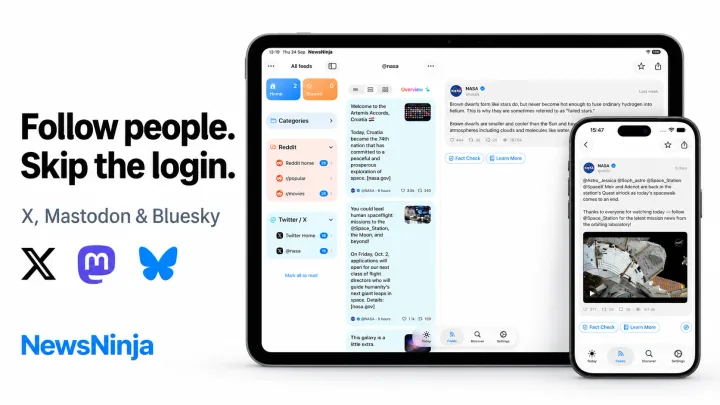
NewsNinja lets you follow supported public X, Mastodon, and Bluesky accounts as read-only sources. You don’t need to sign in to those networks to add their public content to your collection.
Add a social account
- Open Feeds and use + to open Add Source.
- Choose X, Mastodon, or Bluesky, or paste a supported profile URL.
- Enter the account details requested by the selected service. For Mastodon, include the server with the handle.
- Review the source, choose a category and Show in Home preference, and save.
Open the account from the sidebar or include it in a category alongside RSS, YouTube, and podcasts. You can also give an available account its own Today section.
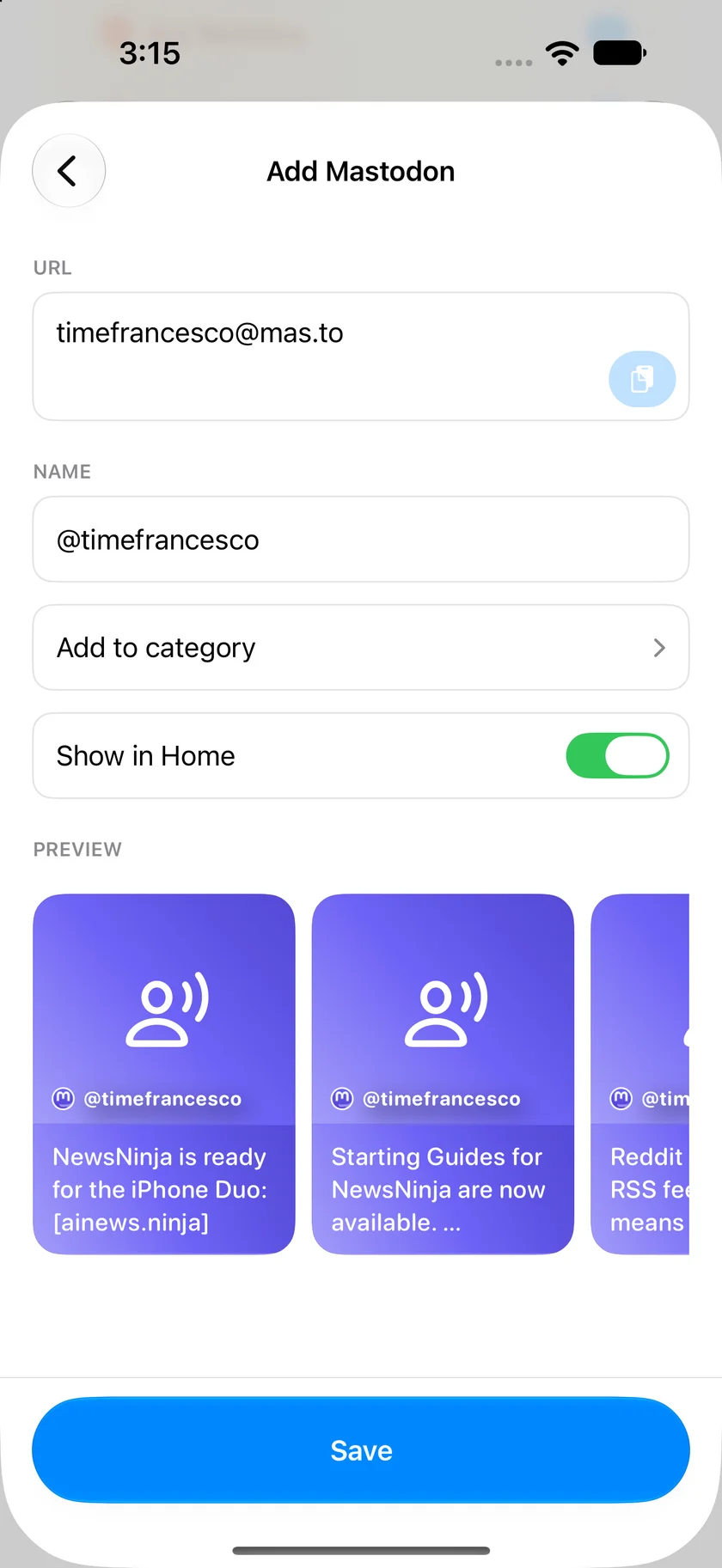
Add a Mastodon account with its server
Mastodon handles include a server, so enter both the username and server rather than the username alone. In the example below, [email protected] identifies the account timefrancesco on mas.to.
Check the Preview cards to make sure you’ve found the account you want. Then choose a category, decide whether to Show in Home, and tap Save.
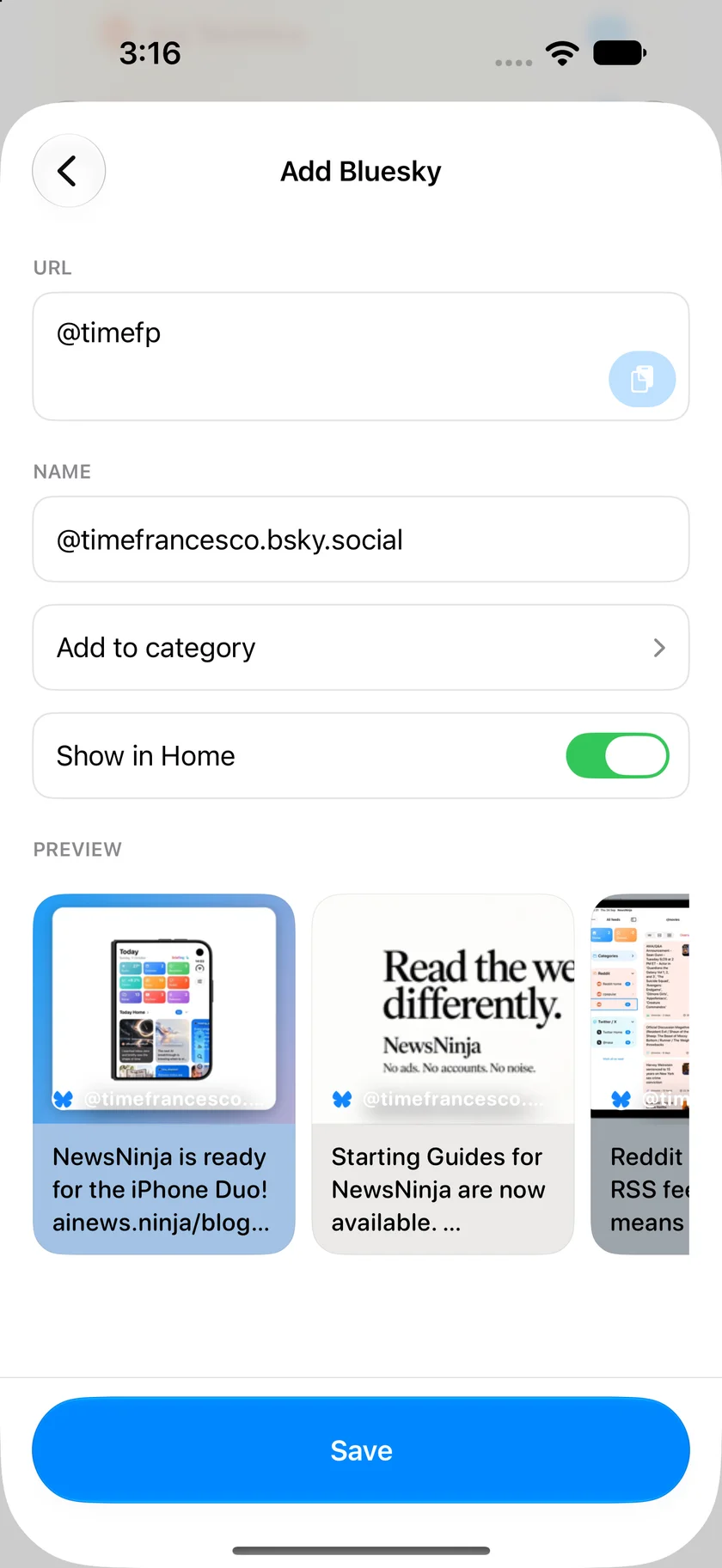
Preview a Bluesky account before saving
Choose Bluesky in Add Source and enter the account’s handle or profile URL. Review the resolved account name and Preview cards before saving, especially when accounts have similar names. The example below shows the source preview with recent posts, category selection, and the Show in Home option.
Read posts with links, videos, and images
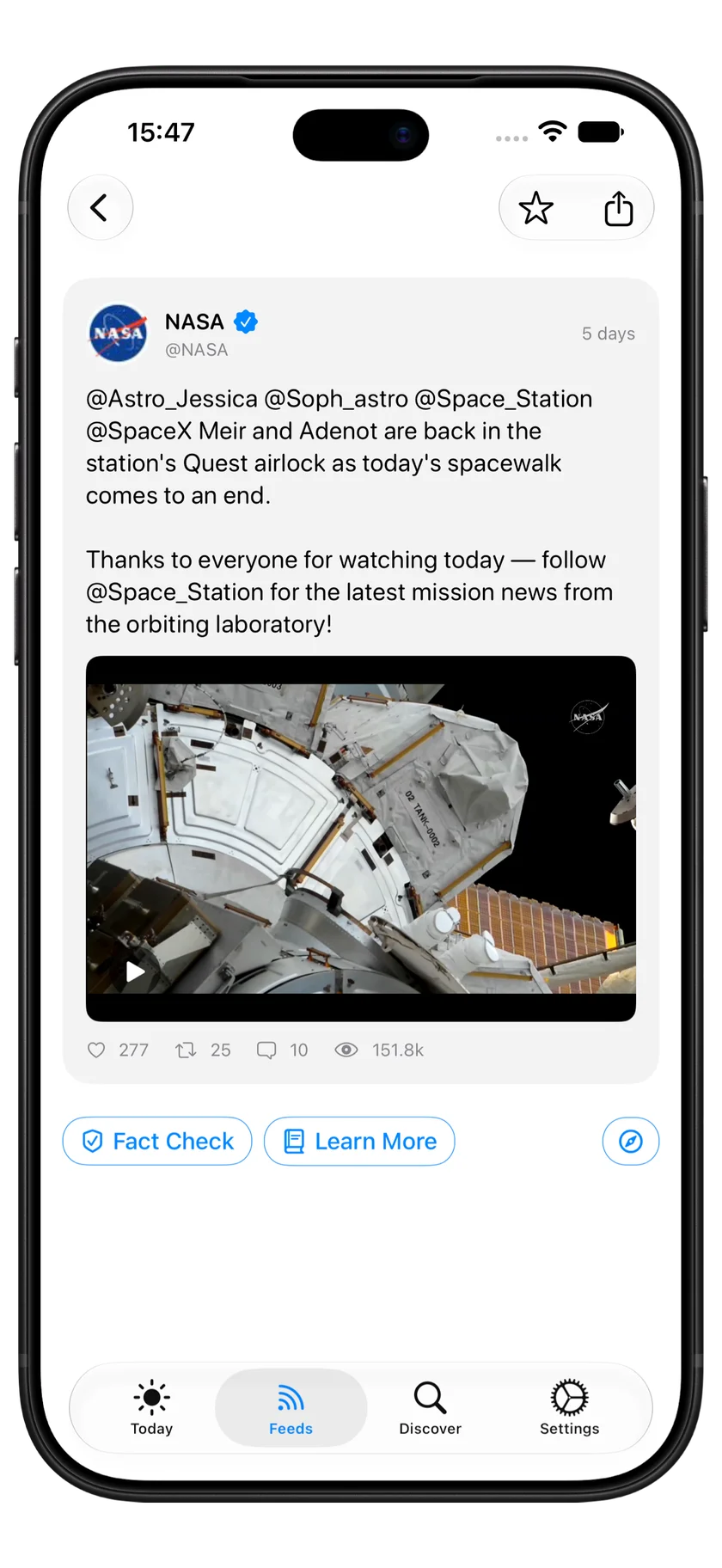
Social posts in NewsNinja support links, videos, and images, alongside the post text. Open a post to read it, follow a shared link, watch an available video, or view its images. The example below shows a NASA post from X with a video ready to play.
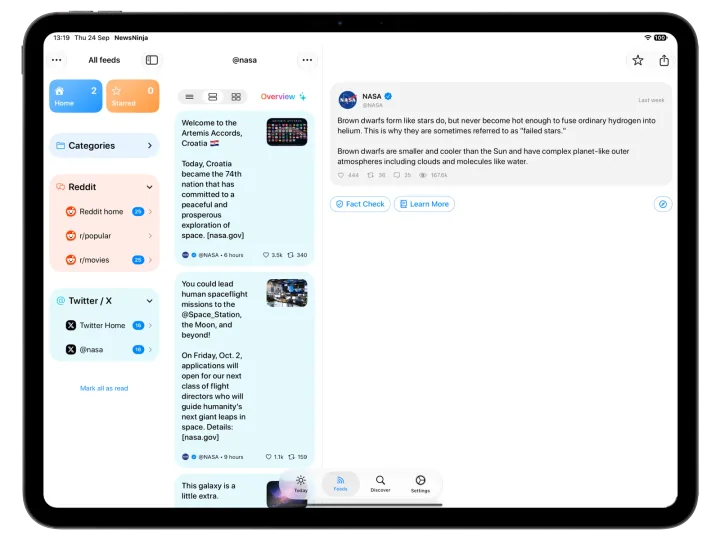
Browse social feeds on iPad
On iPad, your sources, the account’s post list, and the selected post appear side by side. Browse multiple posts while keeping the one you’re reading open, with your other sources close at hand.
A reading experience without a social login
This is a reading experience: following in NewsNinja doesn’t create a follow relationship on the social network or enable posting, replies, or likes. Protected and unavailable content cannot be treated as public feeds. Social-account features require NewsNinja+, and X follows are subject to the app’s current limit.