Introducing NewsNinja 3.2: Email, now part of your feeds
NewsNinja 3.2 adds read-only email support with a Today widget, Face ID lock, tracking protection, and grouping, plus inline translation and on-device Apple Intelligence.
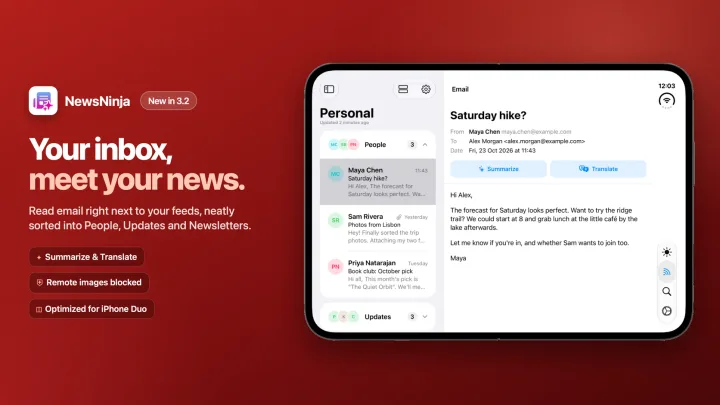
NewsNinja 3.2 adds the thing many of you asked for: email.
A lot of what I read every day no longer arrives through RSS. It arrives as newsletters, digests, release notes, and the occasional message from a real person. Now you can read all of it right next to your feeds.
This release also brings inline translation and on-device AI with Apple Intelligence for both emails and articles.
And as always, no NewsNinja account is required.
Your inbox, next to your news
NewsNinja is a reader, and that is how email works here too. Connect an account, read your Inbox in a layout built for newsletters, and summarize or translate a message when you need to catch up quickly.
Email is read-only by design. NewsNinja never sends, deletes, moves, or flags anything:
- Only your Inbox. Other folders, such as Archive or Spam, are not downloaded.
- Nothing changes on the server. IMAP accounts open the Inbox in read-only mode, and messages are fetched without being marked as seen.
- Read and unread stay on your device. Opening a message does not change what Mail or any other app shows.
- No sending. To answer a message, use your regular mail app.
That makes it safe to try. Connecting NewsNinja cannot archive a message by accident or break your mailbox.
Add it like any other feed
Open Add New Feed, choose Email, and pick your provider.
- IMAP is available today. NewsNinja has presets for iCloud Mail, Fastmail, and Yahoo Mail, and you can choose Other IMAP server for work, school, or self-hosted mail. Most providers require an app password rather than your regular one, and the setup screen links to each provider’s instructions.
- Gmail is coming soon. Sign-in with Google is built and waiting for Google’s review. Until it is approved, Gmail users can connect over IMAP.
Two ways to read
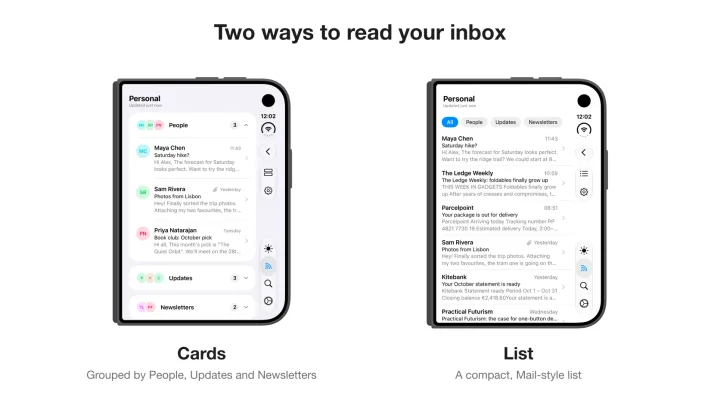
The Inbox has a List / Cards switch in its toolbar.
- Cards puts messages in rounded cards. With grouping on, each type gets its own collapsible card, so a busy morning of automated mail fits on a single screen.
- List is the compact, Mail-style option: sender, subject, and a preview line.
Pick whichever matches how you read.
Group newsletters, people, and updates
Turn on Settings → Email → Group emails by type to split your Inbox into:
- People: messages from real humans.
- Updates: receipts, notifications, and other automated mail.
- Newsletters: the things you subscribed to.
In List style, these appear as pills next to All. In Cards style, each one becomes its own card. Grouping happens on your device as messages download, so the important mail from people stops getting buried under everything else.
Email on Today
If you use the Today dashboard, you can add an Email widget to it. It shows your most recent messages across all your inboxes, newest first, and Today’s overview includes an unread count. On a wide screen, such as an iPad in landscape, the widget shows two columns.
Email on Home
Email does not have to live in its own corner. For each email account, you decide whether its messages show up in your mixed Home list next to your articles. You can bring in everything from your Inbox, only your newsletters, or nothing at all and keep email in its own inbox.
Bringing in only newsletters is a nice middle ground: the things you subscribed to sit right next to your news, while messages from people and automated updates stay in the inbox. The choice is per account, so you can mix and match if you have more than one.
Private by default
Email is more personal than a news feed, so privacy got the most attention in this release.
- Lock it with Face ID or Touch ID. Turn on Require Face ID in Settings → Email and NewsNinja asks you to authenticate before showing any Inbox. It locks again whenever the app goes to the background. On devices with Optic ID, that works too.
- Tracking images are blocked. Newsletters often hide tiny images that report when you open them. NewsNinja blocks remote images by default, and Block suspected tracking images stays on even when you choose to load images. You can tap Load images for a single message or always load them in Settings. Tracker blocking is best-effort: it catches the common ones, not every one.
- Locked-down reader. Scripts in emails never run, forms and embedded frames are removed, and links only open when you tap them.
- Encrypted on your device. Downloaded mail is encrypted on disk with a separate key per account, excluded from backups, and kept out of Today’s feeds and OPML exports, and appears in Home only when you choose to show it there. Passwords and sign-in tokens stay in the Keychain of the device they were entered on.
Made for big screens too
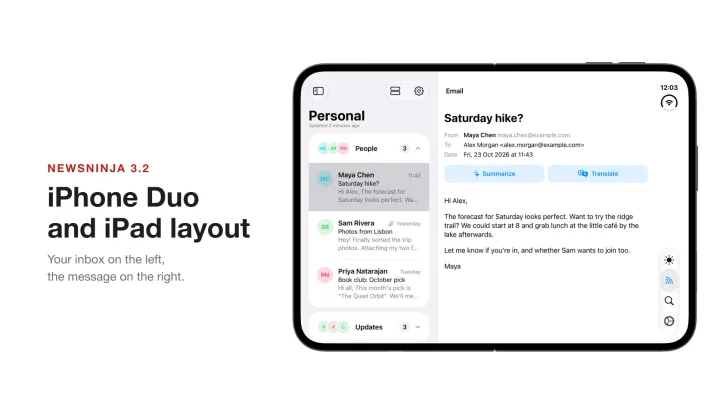
On iPhone Duo and iPad, the inbox sits on the left and the message opens on the right. Email layouts are famously inconsistent, so the reader adapts to each message: phone-friendly newsletters render at your screen width, fixed-width designs are scaled down to fit, and plain-text emails keep their line breaks at a comfortable size.
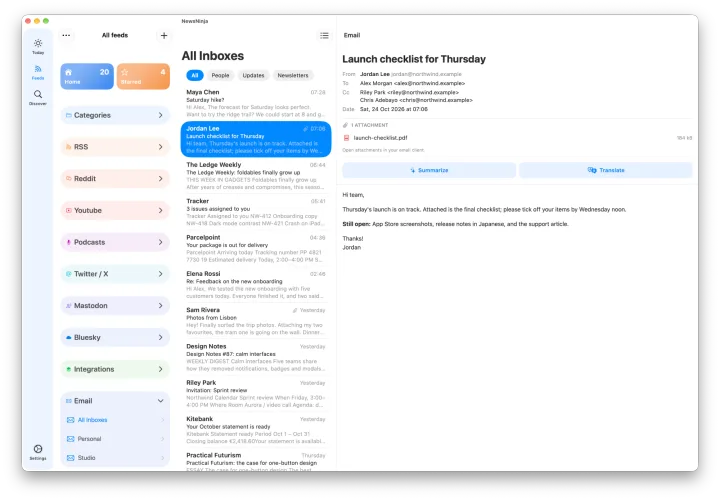
Email works on the Mac too, with your inboxes in the sidebar next to your feeds and the message open beside the list.
Summarize and translate, without leaving the app
Every email has Summarize and Translate buttons, and the same tools work on articles.
- Inline translation. Translate an email or an article and read it in your language right where it is, with links and formatting intact.
- On-device AI with Apple Intelligence. Summaries and translations can run entirely on your iPhone, iPad, or Mac, so the text of your email never has to leave your device. Summaries need a device that supports Apple Intelligence. Translations work on any supported device and may offer to download a language first.
You stay in control of where email is processed. In Settings → Email → AI settings, you can ask each time, always allow, or turn AI off entirely. IMAP accounts can also use NewsNinja’s server, which is useful on devices without Apple Intelligence. In that case only the subject and body text are sent, and email summaries and translations are not stored. Gmail will always use on-device processing.
What it doesn’t do (yet)
To set expectations, email in NewsNinja is intentionally focused:
- It shows your Inbox only.
- It cannot reply or send.
- Attachments are listed but not opened.
- Gmail is coming soon.
Try it
Email works on iPhone, iPad, and Mac. Update to NewsNinja 3.2, go to Add New Feed → Email, and connect an IMAP account. If a newsletter renders strangely, let me know which one. Email layouts are endlessly creative, and every odd one helps make the reader better.
Thank you to everyone who asked for this, tested it, and sent feedback along the way.