How to Block Keywords and Hide Unwanted Headlines in NewsNinja
Use the Words black list setting in NewsNinja to filter article titles containing unwanted terms.

NewsNinja’s blocklist helps you reduce unwanted headlines while keeping your subscriptions. You choose the terms to exclude, and articles whose titles match are hidden from your lists.
Add a blocked term
- Open Settings → News & Articles.
- Choose Words black list.
- Enter a term in Enter word and tap Add.
- Review your list and remove entries when you no longer want to exclude them.
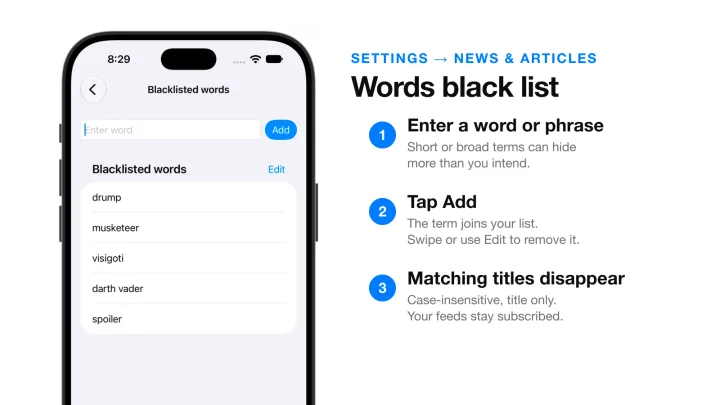
Matching is case-insensitive and checks whether the title contains the entered text. It isn’t a semantic topic filter and doesn’t scan the full article body. A broad or short term can therefore hide more than you intend.
Use specific terms and adjust the list if useful stories disappear. Removing a term lets matching items show up again; you don’t need to re-add their feeds.
For a different kind of filtering, use Hide read items to focus on unread content, or Home’s feed-type filter to browse a particular source type. See organizing feeds with filters.