How to Summarize a YouTube Video with NewsNinja
Learn how to summarize a YouTube video in NewsNinja, directly from Safari, or through the YouTube app's share menu.
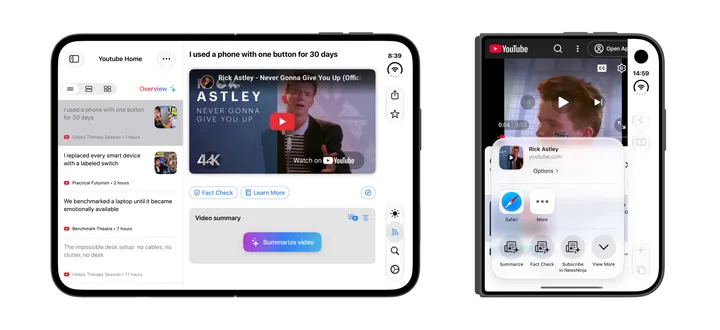
A YouTube video summary can help you decide what to watch or revisit the main points of a long video. NewsNinja lets you request one from the video screen, directly from Safari, or through the YouTube app’s share menu.
Summarize a video
- Open a YouTube video in NewsNinja from a followed channel or a supported video link.
- Tap Summarize video.
- Read the summary as it appears.
- Use the summary-length control to choose Detailed, Concise, or Structured.
Detailed gives you a fuller account, Concise is useful for a quick catch-up, and Structured highlights the main topics with timestamps, making it easier to find where each topic is discussed in the video.
Video summarization is a NewsNinja+ feature. Results depend on the content available to the summarization service, so some videos may fail to produce a summary. Open the original video when you need its full context.
Summarize directly from Safari
You can also summarize a YouTube video while browsing in Safari:
- Open the YouTube video in Safari.
- Tap the Share button.
- Tap the Summarize action with the NewsNinja icon.
This opens the NewsNinja action extension and shows a summary of the video.
Summarize directly from the YouTube app
- Open a video in the YouTube app.
- Tap Share.
- Scroll through the sharing options and tap More.
- In the share sheet that opens, tap the Summarize action with the NewsNinja icon.
The NewsNinja action extension opens and shows a summary of the video.